How to Fix USB Device Not Recognized: A Complete Step-by-Step Guide
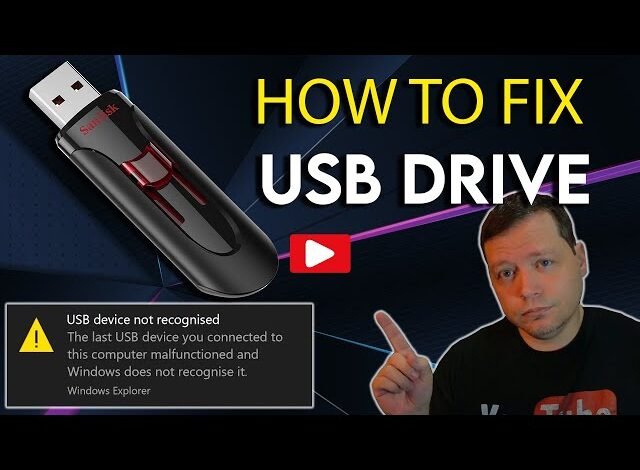
If you’ve ever plugged a USB device into your computer only to see the frustrating message “USB Device Not Recognized,” you’re not alone. Many Windows users experience this problem when connecting flash drives, external hard drives, keyboards, mice, printers, or smartphones. The good news is that you don’t always need to replace your device or visit a repair shop.
In this comprehensive guide, you’ll learn how to fix USB device not recognized using simple troubleshooting methods that anyone can follow. Whether you’re using Windows 10 or Windows 11, these solutions can help restore your USB connection quickly.
What Does “USB Device Not Recognized” Mean?
Before learning how to fix USB device not recognized, it’s important to understand what the error means. This message appears when your computer cannot communicate properly with the connected USB device. The issue may be caused by damaged drivers, faulty USB ports, hardware failure, corrupted files, or outdated system software.
Fortunately, identifying the root cause is usually straightforward if you follow the troubleshooting steps one by one.
Common Reasons Behind the Error
Several factors can trigger this problem, including:
- Corrupted USB drivers
- Faulty USB ports
- Damaged USB cable
- Power management settings
- Windows update issues
- Hardware malfunction
- Outdated BIOS
- Incompatible USB device
Knowing the possible causes makes it easier to understand how to fix USB device not recognized without unnecessary guesswork.
1. Restart Your Computer
The easiest solution is often the most effective.
Sometimes Windows temporarily fails to recognize connected hardware due to background processes or driver conflicts. Restarting your PC refreshes the operating system and reloads hardware drivers.
After restarting, reconnect the USB device and check if Windows recognizes it.
This simple method is often the first step in how to fix USB device not recognized.
2. Try Another USB Port
Not every USB port functions perfectly.
A damaged or dirty USB port may prevent your device from connecting correctly.
Try these steps:
- Disconnect the USB device.
- Plug it into another USB port.
- Test both USB 2.0 and USB 3.0 ports.
- Avoid using USB hubs during testing.
If the device works in another port, the original port may be defective.
This is another easy solution when learning how to fix USB device not recognized.
3. Test the USB Device on Another Computer
Before assuming your computer is the problem, test the USB device elsewhere.
If the USB device works on another PC:
- Your computer likely has software or driver issues.
If it doesn’t work anywhere:
- The USB device itself may be damaged.
This step helps narrow down how to fix USB device not recognized much faster.
4. Update USB Drivers
Outdated drivers are among the most common reasons for USB recognition problems.
To update drivers:
- Press Windows + X
- Open Device Manager
- Expand Universal Serial Bus controllers
- Right-click the problematic device
- Select Update Driver
- Choose Search automatically for drivers
Windows will search and install the latest compatible driver if available.
Updating drivers is one of the most effective methods for how to fix USB device not recognized.
5. Reinstall USB Drivers
If updating doesn’t help, reinstall the drivers completely.
Here’s how:
- Open Device Manager.
- Expand USB controllers.
- Right-click the unknown USB device.
- Choose Uninstall Device.
- Restart your computer.
Windows will automatically reinstall fresh drivers during startup.
Many users successfully resolve how to fix USB device not recognized using this method.
6. Disable USB Selective Suspend
Windows sometimes powers down USB ports to save energy.
Unfortunately, this feature can interfere with USB devices.
To disable it:
- Open Control Panel.
- Go to Power Options.
- Select your active power plan.
- Click Change advanced power settings.
- Expand USB settings.
- Disable USB Selective Suspend.
Save your changes and reconnect the device.
This often solves how to fix USB device not recognized, especially on laptops.
7. Check for Windows Updates
Microsoft regularly releases updates that improve hardware compatibility.
To check:
- Open Settings.
- Select Windows Update.
- Click Check for Updates.
- Install any available updates.
- Restart your computer.
Keeping Windows updated is an important part of how to fix USB device not recognized.
8. Scan for Hardware Changes
Sometimes Windows simply fails to detect newly connected hardware.
To scan manually:
- Open Device Manager.
- Click the Action menu.
- Select Scan for hardware changes.
Windows will search for connected devices again.
This quick trick may instantly resolve how to fix USB device not recognized.
9. Disable Fast Startup
Fast Startup can occasionally interfere with USB hardware initialization.
To disable it:
- Open Control Panel.
- Go to Power Options.
- Choose What the power buttons do.
- Click Change settings currently unavailable.
- Uncheck Turn on Fast Startup.
- Save changes.
Restart your computer afterward.
Many users report success with this solution when searching for how to fix USB device not recognized.
10. Inspect the USB Device for Physical Damage
Hardware damage is often overlooked.
Check your USB device for:
- Bent connectors
- Broken casing
- Dust buildup
- Water damage
- Loose cables
Also inspect your computer’s USB ports for debris.
If physical damage exists, replacing the device may be the only solution.
This inspection is an essential part of how to fix USB device not recognized.
11. Run the Hardware Troubleshooter
Windows includes built-in troubleshooting tools.
Although newer Windows versions hide some troubleshooters, you can still access hardware diagnostics through system settings or Windows support tools.
The troubleshooter automatically detects common hardware problems and recommends fixes.
Using built-in diagnostics is another helpful step in how to fix USB device not recognized.
12. Update Your BIOS
If none of the previous methods work, your motherboard BIOS may require an update.
A BIOS update can improve:
- USB compatibility
- Hardware stability
- Device recognition
However, updating BIOS should be done carefully since incorrect installation may cause system issues.
Always download BIOS updates directly from your motherboard or laptop manufacturer’s official website.
Updating BIOS is generally considered a final solution for how to fix USB device not recognized.
Preventing USB Recognition Problems
Once you’ve solved the issue, follow these tips to prevent future problems:
- Safely eject USB devices before unplugging.
- Keep Windows updated.
- Update motherboard chipset drivers regularly.
- Avoid cheap USB hubs.
- Use high-quality USB cables.
- Keep USB ports clean.
- Avoid forcing USB connectors.
- Install reliable antivirus software.
These habits reduce the chances of encountering the error again.
Frequently Asked Questions
Why is my USB detected but not opening?
This may indicate corrupted file systems, partition errors, or drive letter conflicts. Disk Management can help assign a drive letter or repair the partition.
Can a virus cause USB device not recognized?
Yes. Malware can damage USB drivers or interfere with hardware communication. Running a full antivirus scan is recommended.
Does updating Windows fix USB issues?
In many cases, yes. Windows updates frequently include driver improvements and bug fixes that resolve USB compatibility problems.
Should I replace my USB device immediately?
Not necessarily. Always test the device on another computer first. If it works elsewhere, the issue is likely with your computer rather than the USB device.
Final Thoughts
Learning how to fix USB device not recognized doesn’t have to be complicated. Most USB recognition issues are caused by outdated drivers, faulty USB ports, power management settings, or temporary software glitches. By following the solutions outlined above—such as restarting your PC, updating drivers, trying different USB ports, disabling USB Selective Suspend, and checking for Windows updates—you can solve the problem without professional assistance.
If none of these methods work, testing the USB device on another computer or updating your BIOS may reveal the underlying cause. With proper maintenance and safe USB practices, you can minimize future connection problems and keep your devices working reliably.